


Okta Verify
4.02.42K Reviews
App Specs
- Version
- Varies with Device
- Updated On
- License
- Free
- Downloads
- 10,000,000+
- Developer
- Okta Inc.
- Categories
- Productivity
- Platform
- Android, iOS
Screenshots
 Analysis by AppCompare
I think Okta Verify makes the most sense when an organization already uses Okta to protect work or school accounts. It is not a general password manager, and installing it alone will not secure every account you own. Its job is narrower: it helps confirm that a login attempt to an Okta-connected service is really yours. That distinction is useful to understand before you begin, because it sets a realistic expectation for what the app can do.
As a free productivity app from Okta Inc., it is designed to sit quietly on your phone until a sign-in needs confirmation. The app has been around since Oct 4, 2011, and its broad adoption—over 10 million installs—makes it a familiar option in workplaces that rely on Okta. I would not choose it just because I want an authenticator for unrelated personal accounts; I would use it when an organization’s sign-in process asks me to.
What to expect from an authentication app
The first thing to expect is a link between the app and an account managed through Okta. That means your employer, school, or another organization usually needs to make the service available and guide you through enrollment. The app is the second step in that sign-in relationship, not a place where you create a standalone Okta identity and start adding any website you like.
That focused role is both its strength and its limitation. Compared with a general authenticator that stores codes for many unrelated services, Okta Verify is most useful when your organization has chosen Okta as its access system. You do not need to decide which code belongs to which personal website if your organization’s login flow sends the verification request to the app. On the other hand, if you want one tool for a mix of personal accounts across different providers, a broadly compatible authenticator or password manager may fit better.
Getting through the first setup
Before opening the app, I would make sure I can sign in to the organization’s Okta page on a computer or another device and have any enrollment instructions nearby. Setup commonly involves connecting the account by scanning a QR code, so having the phone with the app and the page showing the code available at the same time makes the process less awkward. Treat the QR code as a private setup credential: scan it only from the official enrollment flow, and do not send a screenshot of it to someone else.
If you are helping a family member or a colleague, let them complete the enrollment on their own phone rather than registering your own device for their account. That keeps the approval prompt tied to the person who is meant to receive it and avoids a confusing situation later when one person gets another person’s sign-in requests. If the screen you see does not match your organization’s instructions, it is better to pause and ask its support team than to repeatedly try different setup paths.
Once enrollment succeeds, do a simple test while you are still able to reach the organization’s sign-in page. This is a practical step, not busywork: it lets you see where the approval request appears and confirm that you recognize the account or service named in the request. I would also make sure the phone has a usable network connection and that notifications are allowed if the chosen sign-in method relies on a push prompt.
Worth Reading Before You Choose

EA SPORTS FC Mobile 26 Is a Bigger Football Game, but It Takes Time

Flipboard Shows What News Apps Must Do Beyond the Feed

Switching to Android Auto Means Rethinking Your Driving Routine

Google Calendar Makes a Crowded Week Easier to Manage

Ludo King Makes the Most of the Minutes Between Plans

Baby Panda World Brings Quick Play to Modern Phones, but Its Game Library Feels Busy
The first successful sign-in
A realistic first use might happen on a Monday morning: you open your work portal on a laptop, enter your normal sign-in details, and then check your phone for the verification prompt. When the request matches the login you just started, approving it completes the extra check. The helpful part is that the phone is separate from the laptop, so a stolen or guessed password by itself is less likely to be enough to get someone into the account.
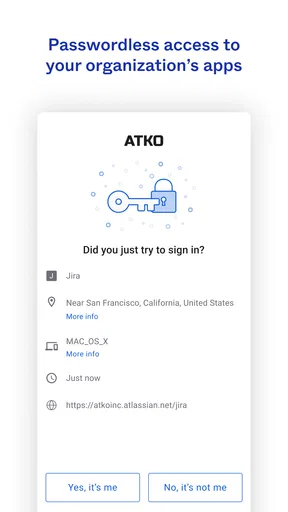
Still, I would not approve a prompt just to clear a notification. If you did not start a sign-in, deny or ignore the request and contact your organization’s support team if it keeps happening. This is one of the most important habits with push-based authentication: convenience is valuable, but the prompt is also a signal that somebody is trying to access the account. Pause long enough to connect it to an action you personally began.
Okta Verify has an average rating of 4.1 from around 41,000 ratings, and its Everyone age classification makes clear that the app itself is suitable for a general audience. Those details are useful context, but they do not tell me whether it will work with a particular employer’s setup. The deciding factor is whether the organization you need to sign in to supports it and has enrolled your account.
Where people can get confused
One common point of confusion is expecting the app to replace a password. In ordinary use, it adds a verification step to the organization’s sign-in process; it does not mean you should stop using a strong, unique password where one is required. I see the two steps as different protections: the password is something you know, while the phone prompt confirms access to a registered device.
Another source of friction is changing or losing a phone. Because the enrolled device is part of the verification process, a new phone may require your organization’s account recovery or re-enrollment procedure. If you know you are replacing your device, check the organization’s instructions before wiping or trading in the old one. I would not assume that reinstalling the app on a new phone automatically transfers the account connection.
Push notifications can also be easy to miss when a phone is in focus mode, notifications are restricted, or the connection is unreliable. If a request does not arrive, check the phone’s notification settings and network first, then use the sign-in options your organization has enabled or contact its help desk. Repeatedly tapping approve or restarting the sign-in without checking the request can make it harder to tell which prompt is current.
Who benefits most, and who may prefer another tool
I would recommend Okta Verify to someone whose workplace or school explicitly uses Okta and who wants a straightforward way to confirm sign-ins from a phone. It can be especially helpful for people who regularly access internal portals, email, or shared work services from more than one device. The main benefit is not that it replaces every security tool; it is that it makes the organization’s extra sign-in check practical in an everyday routine.
I would skip it as a standalone choice if I wanted to collect verification codes for a broad range of unrelated personal services. A general authenticator may be a better match for that job, while a password manager is the more relevant option if my main problem is remembering unique passwords. These tools solve different problems, and using Okta Verify does not automatically organize or improve passwords across accounts it does not manage.
There is also a real trade-off in relying on a phone. A drained battery, a misplaced device, a notification delay, or being unable to get online can interrupt access at an inconvenient moment. If your account is important, learn the recovery route before you need it: find out whom to contact and what identity checks your organization requires. That preparation is more useful than assuming the app alone can rescue a locked-out account.
Making it dependable in daily use
My practical routine would be to keep the phone reasonably charged, leave relevant notifications available, and approve only requests connected to sign-ins I initiated. When I am about to travel or expect to be away from a reliable connection, I would check the organization’s guidance in advance rather than waiting until I am at a login screen. That small bit of planning matters more with a work authentication app than with a casual utility, because a missed prompt can block access to services I need for the day.
For anyone evaluating it before installing, the simplest question is: has the organization that manages my account told me to enroll Okta Verify? If yes, follow its instructions and test a sign-in while support is easy to reach. If no, the app may not be useful for the accounts you have in mind. It is free, but its value comes from being part of an Okta-based sign-in setup, not from being a universal security switch.
Ever found yourself stuck in that eternal loop of forgotten passwords and recovery emails? If you’re nodding your head, you might want to check out Okta Verify. It’s one of those apps that promises to make your digital life a whole lot easier. Curious? Let me walk you through my experience with it.
First Impressions
So, what exactly is Okta Verify? In simple terms, it’s a multifactor authentication app designed to keep your online accounts safe and secure. You know, the kind of app that saves you from the dreaded "Account Locked" message.
Downloading and installing the app was a breeze. Available on both Android and iOS, you can grab it straight from the Google Play Store or the App Store. Once you have it installed, you’ll need to pair it with your Okta account. It’s a pretty straightforward process with clear instructions, so even if you’re not a tech whiz, you’ll manage just fine.
Setting It Up
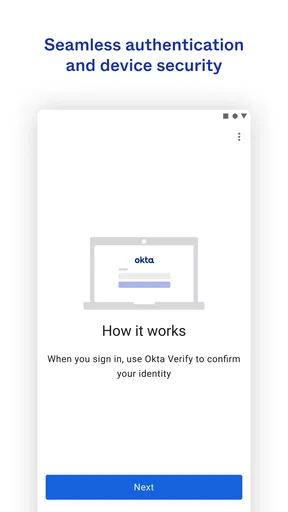
Getting started with Okta Verify is a piece of cake. The app offers a friendly walkthrough to help you connect it with your online accounts. All you need is your smartphone and a computer to scan a QR code, and voilà, you’re in.
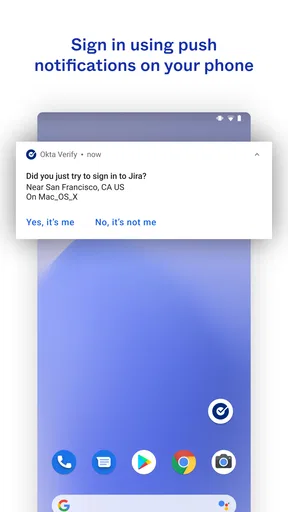
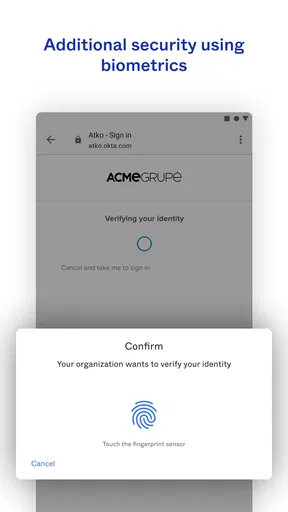
One thing I particularly appreciated is the flexibility. Whether you prefer push notifications, one-time passwords, or biometrics like fingerprint or face recognition, Okta Verify’s got you covered. I opted for push notifications; it’s just easier to tap "Yes" on my phone than to type in a code. Plus, who doesn’t love a little convenience?
Using the App
Once you’re all set up, using Okta Verify is smooth sailing. Whenever you log into an account linked to Okta, you’ll get a notification on your phone. Just hit "Approve," and you’re logged in. It’s that simple.
The app’s interface is clean and user-friendly. It’s not cluttered with unnecessary features, which I appreciate. You get what you need, and nothing more—exactly how a utility app should be.
Security and Peace of Mind
Let’s talk about security because, after all, that’s the whole point of using an app like this. With Okta Verify, you’re adding an extra layer of protection to your accounts. Even if someone gets hold of your password, they won’t be able to access your accounts without your phone.
This two-step verification gives you peace of mind, especially if you manage sensitive information or work in a field where security is paramount. It’s a no-brainer for anyone looking to beef up their online safety.
Room for Improvement
Now, no app is without its quirks, and Okta Verify is no exception. While it generally works flawlessly, there have been a couple of times where notifications were delayed. It’s not a deal-breaker, but it’s something to keep in mind if you’re in a hurry.
Also, the app requires a stable internet connection. So, if you’re somewhere with spotty Wi-Fi, you might face a hiccup or two. Again, not a massive issue, but worth considering if you travel a lot.
Final Thoughts
So, is Okta Verify worth it? I’d say absolutely. It’s a solid app for anyone keen on boosting their online security without adding extra hassle to their daily routine. The setup is simple, the interface is clean, and it does what it promises.
If you’re tired of juggling passwords and want a reliable way to safeguard your accounts, give Okta Verify a shot. Trust me, your future self will thank you!
Pros
- Easy integration with multiple platforms.
- Strong security features for user data.
- User-friendly interface and setup.
- Supports biometric authentication options.
- Reliable notifications for authentication requests.
Cons
- Requires internet connection for functionality.
- Limited offline access for verification.
- Some users report occasional app crashes.
- Initial setup can be time-consuming.
- Not all features available on older devices.
FAQs for Okta Verify
What is Okta Verify and how does it work?
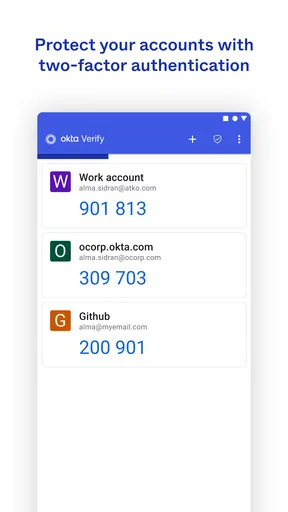
Okta Verify is a multifactor authentication app that enhances security by requiring users to confirm their identity through their mobile device. After entering your standard credentials, the app sends a push notification or generates a code, which you then use to verify your identity before gaining access to your account.
Is Okta Verify compatible with all devices?
Okta Verify is available for both Android and iOS devices. It supports a wide range of models and operating systems, but it's important to ensure your device is running a compatible version. Regular updates to the app help maintain compatibility and security across different platforms.
How secure is Okta Verify?
Okta Verify is highly secure, using industry-standard encryption to protect your data and ensure secure communication between your device and Okta's servers. The app enhances security by adding an additional layer of authentication, protecting against unauthorized access even if your primary credentials are compromised.
Can I use Okta Verify without an internet connection?
Yes, Okta Verify can be used without an internet connection by generating a six-digit code that can be entered manually. This offline capability ensures you can still access your accounts securely even when you don't have network connectivity.
What happens if I lose my device with Okta Verify installed?
If you lose your device, it's crucial to contact your IT administrator immediately to disable Okta Verify access from that device. Okta provides options to configure backup methods for verification, ensuring you can still access your accounts securely while you resolve the issue.


